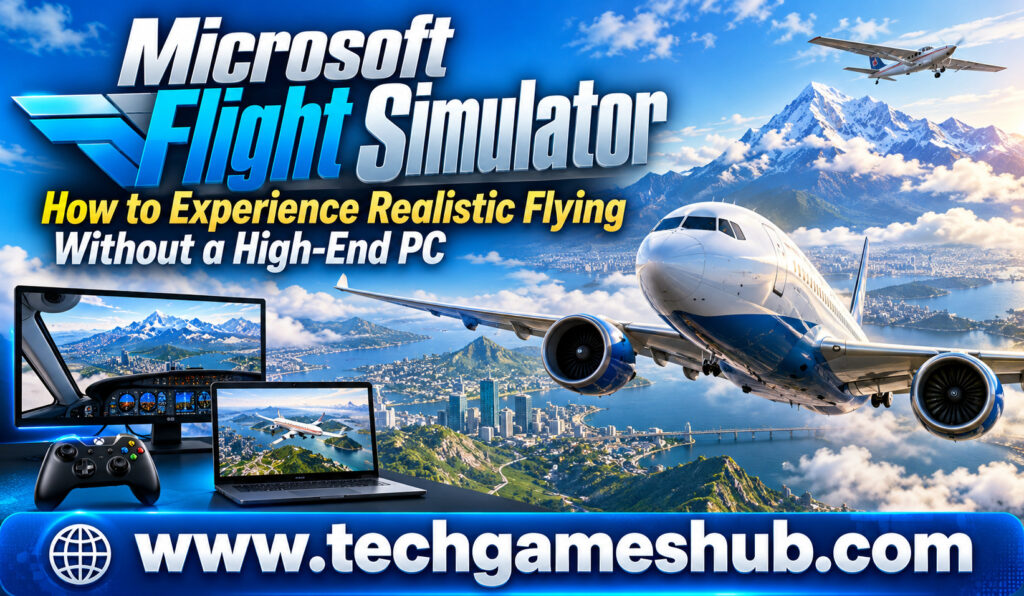
Have you ever wanted to fly a commercial airliner over New York, explore the mountains of Switzerland, or watch the sunset above the Indian coastline without leaving your home? Microsoft Flight Simulator makes these experiences possible through detailed aircraft, realistic weather, and an expansive digital representation of the world. However, running a modern flight simulator on your own computer can demand considerable processing power, memory, and graphics performance.
The good news is that you don’t necessarily need an expensive gaming PC to experience realistic flying. With cloud gaming, Xbox consoles, and carefully optimized settings, you can explore virtual skies using hardware you may already own.
Whether you’re an aviation enthusiast, a beginner interested in flight simulation, or a casual gamer looking for a new experience, this guide explains how to enjoy Microsoft Flight Simulator without investing in a high-end computer. You’ll discover cloud gaming options, hardware alternatives, essential accessories, and practical tips for making every flight more enjoyable.
What Makes Microsoft Flight Simulator So Realistic?
Microsoft Flight Simulator stands out because it combines detailed aircraft systems with expansive environments and atmospheric conditions. Instead of simply controlling an aircraft through a basic game world, you can experience many elements associated with real-world aviation.
Explore a Vast Digital World
One of the biggest attractions is the ability to fly across locations around the globe. You can take off from a familiar local airport, follow a route across several countries, or explore famous landmarks from the air.
The scenery combines geographic data, aerial imagery, and other simulation technologies to create a detailed virtual environment. The exact level of detail varies by location and edition, but the experience can make even a routine flight feel like a sightseeing adventure.
Experience Realistic Aircraft Controls
Depending on the aircraft you choose, you can manage instruments, adjust engine power, control flaps, follow navigation routes, and prepare for landing. Small training aircraft offer a useful starting point, while larger commercial planes provide more complex systems to explore.
Fly Through Changing Weather
Weather and lighting contribute significantly to immersion. You can experience different visibility conditions, changing skies, and flights during the day or night. These elements encourage you to think about navigation and aircraft handling rather than simply pointing the plane toward a destination.
Microsoft Flight Simulator 2024 also introduces career activities, including aviation jobs and specialized missions, giving you additional ways to experience virtual flying. <Cite refs={[“turn982782search0″,”turn982782search11”]}/>
Best Ways to Play Microsoft Flight Simulator Without a High-End PC
You have several options if your existing computer cannot run the simulator comfortably. The right choice depends on your budget, internet connection, preferred controls, and the version you want to play.
1. Use Xbox Cloud Gaming
Xbox Cloud Gaming is one of the most convenient options for playing Microsoft Flight Simulator on lower-powered hardware. Instead of running the entire simulator locally, you stream gameplay from Microsoft’s remote gaming infrastructure.
The official flight simulator support documentation confirms that Microsoft Flight Simulator 2024 launched with Xbox Cloud Gaming availability. The service can let you play on compatible computers, mobile devices, and other supported hardware without installing the full game locally. <Cite refs={[“turn982782search0″,”turn982782search3”]}/>
Visit the Xbox Cloud Gaming website to check current availability.
To get started, sign in with your Microsoft account, confirm the game’s availability and access requirements in your region, and launch it through the supported cloud gaming interface. A compatible controller is recommended, especially if you’re playing on a tablet or laptop.
The main advantage is that your device doesn’t need a powerful graphics card to render the complete simulation. However, you still need a stable internet connection, and cloud streaming may introduce some input delay.
Before subscribing, check the current Game Pass requirements, game access terms, and regional availability. Subscription benefits can change, so don’t assume every plan offers identical cloud gaming access.
2. Play on an Xbox Console
If you prefer playing on a television, an Xbox console can be an alternative to building a gaming PC. Microsoft Flight Simulator is available on Xbox Series X|S, providing a dedicated gaming platform for the simulation.
You can connect your console to a compatible television or monitor and use a controller to manage your flights. This approach avoids many PC hardware compatibility questions and eliminates the need to assemble a computer with a powerful graphics card.
An Xbox Series S may be worth considering if you’re trying to control your initial hardware spending, while the Series X offers a different performance and hardware profile. Compare current prices and the requirements of your preferred simulator edition before deciding.
Keep in mind that purchasing a console is still an investment. If you already own a suitable device, cloud gaming may be the more economical starting point.
3. Try a Compatible Existing Laptop
Not every laptop needs to be replaced just because it cannot handle demanding graphics settings. If your computer meets the game’s minimum requirements, you may be able to run an installed version with adjusted graphics settings.
Microsoft Flight Simulator 2024 lists a minimum configuration that includes 16 GB of RAM and a GeForce GTX 970 or Radeon RX 5700 graphics card, alongside a compatible processor and other requirements. Its recommended configuration is more demanding. <Cite refs={[“turn982782search0″,”turn982782search4”]}/>
If your laptop has integrated graphics or less memory than required, don’t assume it will run the simulator acceptably. Check the requirements for the exact edition you intend to play.
If your computer falls short, consider cloud gaming before purchasing a new machine. If you already meet the minimum specifications, experiment with lower graphics settings and resolution to see whether local gameplay is practical.
4. Consider a Cloud Gaming PC
A cloud gaming PC gives you access to a remote computer with gaming hardware. Depending on the provider, you may be able to install and run compatible PC games instead of relying exclusively on a predefined streaming catalogue.
This approach can offer more flexibility, but it requires additional research. Check whether the remote machine meets the simulator’s requirements, whether your chosen edition is supported, and whether the provider allows the necessary installation and account access.
You may also have to pay for the remote computer and purchase the game separately. For someone who wants to fly occasionally, a conventional game-streaming service may be easier and cheaper.
How to Set Up Microsoft Flight Simulator Through Cloud Gaming
Getting started with cloud gaming is relatively simple once you’ve confirmed that your device and region are supported.
Step 1: Check Game Availability
Visit the official Xbox Cloud Gaming website and search for Microsoft Flight Simulator. Confirm which edition is available and what subscription or purchase requirements apply to your account.
You should also check whether the service is officially available in your country. Cloud gaming support and game catalogues can differ by region.
Step 2: Prepare Your Device and Internet Connection
Use a compatible browser or the service’s supported application. Close unnecessary applications and pause large downloads that might compete for bandwidth.
For a more stable experience, connect your computer to your router through Ethernet if possible. If you use Wi-Fi, stay close to the router and avoid areas with a weak signal.
Step 3: Connect Your Controller
A standard Xbox-compatible controller is a useful starting point. It allows you to steer, adjust aircraft controls, and navigate menus without needing a specialized flight simulator setup.
If you prefer keyboard and mouse controls, verify which inputs the service and game version support. Controller compatibility can vary by device.
Step 4: Launch the Simulator
Open the game through the cloud gaming service and follow the displayed instructions. Once you’re in the simulator, select an aircraft and a starting airport.
For your first flight, choose a small aircraft and a familiar location. Begin with a short route so you can concentrate on takeoff, basic flight controls, and landing instead of managing a complicated journey.
Internet Requirements for Smooth Cloud Gaming
Your internet connection plays a major role when streaming Microsoft Flight Simulator. Because the game runs remotely, your device must continuously receive video while sending your inputs back to the server.
A faster connection can help maintain stream quality, but speed alone doesn’t guarantee a smooth flight. Latency, connection stability, Wi-Fi interference, and server distance also matter.
Here are four practical ways to improve your experience:
- Use a stable broadband connection: Follow the cloud provider’s current bandwidth recommendations.
- Reduce network congestion: Pause large downloads and limit other bandwidth-heavy activities during a flight.
- Choose suitable streaming quality: Lower the resolution if the stream repeatedly stutters or becomes blurry.
- Test your connection before flying: Launch a short session before committing to a longer journey.
If you experience significant input delay, precise landings may become more difficult. In that situation, test another network connection or try again when your connection is more stable.
Best Settings and Accessories for a Realistic Flight
You don’t need a full cockpit setup to enjoy flight simulation. A few thoughtful adjustments can make your experience more comfortable and immersive.
Start With Beginner-Friendly Aircraft
Small aircraft are excellent for learning the basics. They typically let you concentrate on steering, managing speed, maintaining altitude, and approaching an airport without immediately dealing with the complexity of a large airliner.
Once you’re comfortable, experiment with more advanced aircraft and longer routes.
Use a Controller Before Buying a Flight Stick
A regular controller is enough to begin exploring the simulator. You can learn the basic controls and decide whether you enjoy the experience before spending money on specialist equipment.
A flight stick or compatible throttle can provide more precise input and a more traditional aviation feel. However, check compatibility with your platform and game edition before buying one.
Adjust Camera and Assistance Settings
Experiment with cockpit and external camera views to find the perspective you prefer. Assistance options can help beginners understand aircraft handling without becoming overwhelmed by every simulation detail.
As your skills improve, gradually reduce assistance and learn more of the aircraft’s systems.
Cloud Gaming vs. a Gaming PC: Which Is Better?
| Feature | Cloud Gaming | Gaming PC |
| Initial hardware cost | Often lower if you already own a device | Can be expensive |
| Internet dependence | High | Online features and streamed data still require connectivity |
| Local installation | Usually unnecessary for streamed gameplay | Required for installed PC versions |
| Graphics performance | Depends on the cloud service and stream | Depends on your hardware and settings |
| Input responsiveness | Depends partly on network latency | Usually avoids cloud-streaming delay |
| Upgrades | Managed by the provider | You manage your hardware |
Cloud gaming is a practical choice if you want to avoid buying a powerful computer. A gaming PC is more suitable if you prefer local control, want to explore compatible PC modifications, or need more flexibility with specialist peripherals.
Neither option is automatically better for everyone. Your budget, internet quality, and preferred style of flying should guide your decision.
Frequently Asked Questions
1. Can You Play Microsoft Flight Simulator Without a Gaming PC?
Yes. You can use Xbox Cloud Gaming on supported devices or play on a compatible Xbox console. Cloud gaming is particularly useful if your existing computer lacks the hardware needed to run the simulator locally.
2. Can You Play Microsoft Flight Simulator in a Browser?
Yes, through supported Xbox Cloud Gaming access on a compatible browser and device. This streams the game rather than running the complete simulator directly inside the browser.
3. Is Microsoft Flight Simulator Available on Xbox Cloud Gaming?
Yes. Microsoft Flight Simulator 2024 and the 2020 edition have official Xbox Cloud Gaming listings. Check your regional catalogue and current access requirements before subscribing.
4. Do You Need a Flight Stick to Play?
No. You can start with a compatible controller or supported keyboard inputs. A flight stick is an optional accessory that may improve immersion and control precision.
5. Is Cloud Gaming Good Enough for Realistic Flying?
Cloud gaming can provide an enjoyable flight simulation experience when your network is stable. However, latency, image compression, and streaming interruptions can affect precision, especially during approaches and landings.
Conclusion
Microsoft Flight Simulator lets you explore the skies, discover new destinations, and experience detailed aircraft without leaving your home. Although the simulator can demand substantial hardware when installed locally, you have alternatives if you don’t own an expensive gaming PC.
Xbox Cloud Gaming is a convenient starting point for streaming the simulator on compatible devices. An Xbox console offers another straightforward route, while an existing PC may work if it meets the relevant system requirements. A cloud gaming PC can also be useful if you want more control over a remote Windows environment.
Before spending money, check the game’s availability, compare subscription and hardware costs, and make sure your internet connection is stable. Start with a short flight in a beginner-friendly aircraft, learn the basic controls, and gradually explore more advanced flying.
With the right setup, you can enjoy the thrill of virtual aviation without immediately investing in a high-end computer.