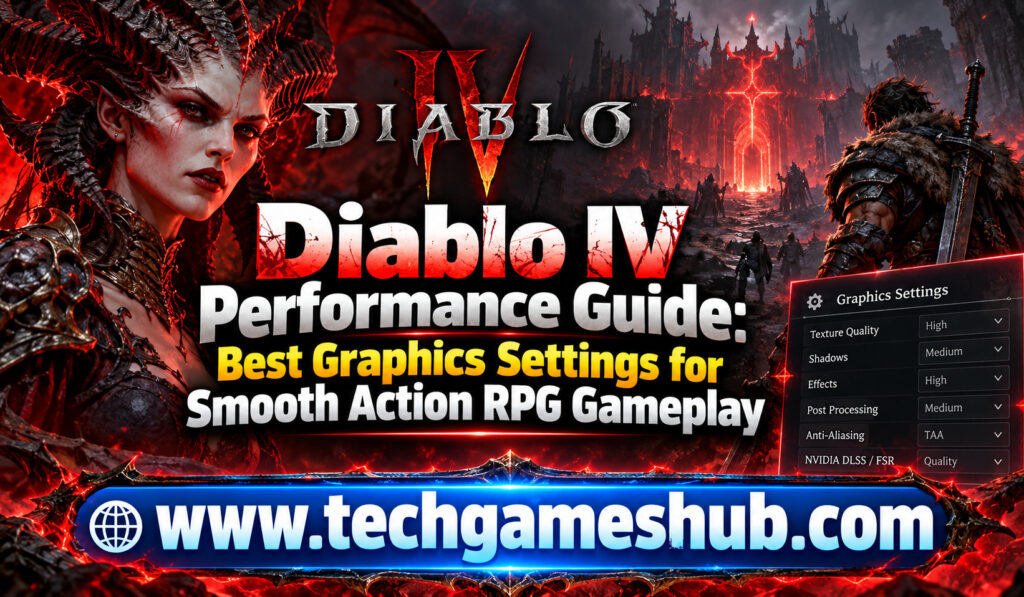
When you’re fighting hordes of demons in Diablo IV, smooth gameplay matters just as much as impressive graphics. Sudden frame drops, stuttering, and delayed responses can make challenging battles frustrating, especially when you’re surrounded by enemies and need to react quickly. Fortunately, you don’t always need an expensive graphics card to improve your experience. The right settings can help you balance visual quality, frame rates, and system stability.
This Diablo IV Performance Guide explains how to optimize your PC settings for smoother action RPG gameplay. Whether you’re using an entry-level gaming computer, a mid-range system, or a powerful desktop, you’ll learn which graphics options to adjust, how upscaling works, and what to do when performance problems appear.
Blizzard provides several graphics presets, including Low, Medium, High, and Ultra, allowing you to customize the game according to your hardware. However, choosing the right combination of individual settings can sometimes deliver a better balance than relying on a preset alone. <Cite refs={[“turn242597search1″,”turn242597search2”]}/>
Why Performance Matters in Diablo IV
Diablo IV features detailed environments, atmospheric lighting, spell effects, large enemy groups, and fast-paced combat. These elements make Sanctuary visually appealing, but they also place demands on your processor, graphics card, memory, and storage.
If your system struggles to render each frame quickly enough, you may experience inconsistent performance. For example, your game might feel smooth while exploring a quiet area but become less responsive during intense battles with multiple enemies and visual effects.
A higher frame rate can make movement and combat feel more responsive. However, consistency matters too. A stable 60 FPS experience can feel better than a frame rate that frequently jumps between high and low values.
Your goal should be to find settings that keep the game responsive during demanding encounters without sacrificing more visual quality than necessary.
Best Diablo IV Graphics Settings for Smooth Gameplay
The ideal configuration depends on your hardware and monitor. Start with the following recommendations, then adjust individual settings based on your results.
Recommended Settings for a Balanced Experience
| Graphics setting | Recommended starting point |
| Graphics preset | Medium or High |
| Resolution | Your monitor’s native resolution |
| Resolution scaling | Use a supported upscaling option if needed |
| Texture quality | Medium or High, depending on VRAM |
| Shadow quality | Medium |
| Ray tracing | Off for maximum performance |
| Ambient occlusion | Medium or lower if performance suffers |
| Reflections | Medium or Off if needed |
| Particle effects | Medium or High |
| Frame rate limit | Match your target and monitor capabilities |
| V-Sync | Enable only if needed to address screen tearing |
These are starting points rather than guaranteed optimal settings for every PC. The names and availability of individual options can vary with game updates and hardware support.
Choose the Right Resolution
Resolution is one of the most important factors affecting graphics performance. Rendering the game at 1440p or 4K requires considerably more graphical work than rendering it at 1080p.
If your frame rate is too low, try reducing the resolution or using the game’s supported resolution-scaling options. You may notice a slight reduction in sharpness, but the improvement in responsiveness can be worthwhile.
For many mid-range gaming PCs, 1080p is a practical starting point. If your graphics card handles the game comfortably at 1440p, you can increase the resolution and test performance again.
Whenever possible, keep your display at its native resolution and use a supported upscaling technology if you need additional performance.
Adjust Texture Quality
Texture quality affects how detailed surfaces appear, including armor, stone walls, terrain, and environmental objects. Higher-quality textures can make the world look sharper, but they also require more video memory.
Blizzard specifically identifies texture quality as an important consideration for memory usage. Its guidance notes that Ultra textures and high-resolution assets have substantial memory requirements, making them less suitable for systems with limited RAM or graphics memory.
If your graphics card has limited VRAM, begin with Medium textures. If you have more available memory and performance remains stable, test High.
You don’t need Ultra textures to enjoy the game’s environments. For many players, High or Medium provides an attractive balance between image quality and smooth gameplay.
Reduce Shadow Quality
Shadows help create depth and atmosphere, but high-quality shadow rendering can consume additional system resources.
If you experience frame drops, reduce shadow quality before lowering every other setting. Medium shadows can preserve the overall appearance of the environment while reducing some of the graphics workload.
You can also test other shadow-related options individually if your version of the game exposes them. Make one change at a time so you can identify which setting makes a noticeable difference.
Disable Ray Tracing for Higher FPS
Ray tracing improves certain lighting, shadow, and reflection effects, creating a more realistic visual presentation. However, these enhancements can significantly increase GPU workload.
Blizzard introduced ray-tracing enhancements to Diablo IV in update 1.3.5, including ray-traced shadows and reflections. The developer also describes additional visual effects associated with the feature.
If your priority is smooth combat, leave ray tracing disabled initially. You can experiment with it later if you have a sufficiently powerful graphics card and enough performance headroom.
On a high-end PC, ray tracing may be worth enabling for visual quality. On a budget system, the performance cost is often better spent maintaining a stable frame rate.
Best Diablo IV Settings for Different PC Builds
Your hardware determines how aggressively you should adjust the graphics options. Instead of applying the same configuration to every computer, use a setup that reflects your system’s capabilities.
Entry-Level Gaming PCs
If you’re using an older graphics card or a budget gaming laptop, prioritize performance over visual effects.
Start with Low or Medium settings at 1080p. If the frame rate remains inconsistent, reduce the render resolution, lower textures if video memory is limited, and disable ray tracing.
You should also close unnecessary applications running in the background. Web browsers, recording software, and other demanding programs can compete for memory and processing resources.
The objective is to maintain consistent gameplay during combat rather than maximize image quality.
Mid-Range Gaming PCs
Mid-range systems can often achieve a useful balance between attractive graphics and smooth performance.
Begin with Medium or High settings at 1080p. Depending on your graphics card, available memory, and target frame rate, you may be able to increase selected options without reducing responsiveness.
If you have a 1440p monitor, try native resolution first. If performance drops in busy scenes, enable a supported upscaling mode or reduce demanding settings such as shadows and reflections.
High-End Gaming PCs
Powerful gaming PCs can generally support higher resolutions and more detailed graphics, although the results still depend on your hardware and the game’s current version.
Try High or Ultra settings, then measure performance during demanding encounters. If your graphics card supports an appropriate upscaling or frame-generation feature, test it to determine whether it improves your experience.
Avoid enabling every visual enhancement automatically. Even a high-end system benefits from sensible frame-rate limits and settings that match your monitor.
How to Use DLSS, FSR, and Frame Generation
Upscaling technologies can help you improve performance without reducing the final image resolution as much as conventional resolution changes might.
NVIDIA DLSS
NVIDIA DLSS uses supported GeForce RTX hardware to render a game at a lower internal resolution and reconstruct a higher-resolution image. Depending on your hardware and the game’s implementation, supported DLSS features can improve performance.
If your graphics card supports DLSS, start with Quality mode when you want to preserve image detail. If you need more performance, try Balanced or another available mode.
AMD FSR
AMD FidelityFX Super Resolution, or FSR, is an upscaling technology available in supported games and configurations. The available options depend on the game version and hardware.
If you’re using a compatible AMD graphics card or another supported GPU, check the in-game menu for FSR options. Test different quality modes to find the best balance for your screen.
Frame Generation
Supported frame-generation technologies can generate additional displayed frames, making motion appear smoother. However, generated frames are not identical to frames rendered directly by the game, and frame generation does not eliminate the underlying cost of processing game logic.
Use it if your hardware and game version support it, but first establish a reasonable base frame rate. Also consider input latency when evaluating the results, particularly if you prefer responsive combat.
How to Fix Stuttering and FPS Drops in Diablo IV
Even after adjusting your graphics settings, you might experience occasional stuttering. Several troubleshooting steps can help you identify the cause.
Update Your Graphics Drivers
Install a stable, compatible graphics driver from NVIDIA, AMD, or Intel, depending on your GPU. Driver updates can include game-specific fixes and optimizations.
If the problem began immediately after a driver update, investigate whether a newer fix or a known compatibility issue applies to your hardware.
Install the Game on an SSD
Blizzard’s published PC requirements specify an SSD for the intended minimum and recommended configurations.
If you’re running the game from an older hard drive, moving it to an SSD may help with loading and asset streaming. It won’t automatically solve every frame-rate issue, but it can improve the overall experience in supported configurations.
Monitor Temperatures and Background Processes
High temperatures can cause a CPU or GPU to reduce its operating speed. Use a trusted monitoring tool to check temperatures and utilization while playing.
Close unnecessary background applications and ensure your laptop or desktop has adequate airflow. On laptops, use an appropriate performance profile when plugged in, provided temperatures remain within safe limits.
Check Your Internet Connection
Diablo IV requires an internet connection. Network problems can cause lag, delayed actions, or disconnections that feel similar to performance issues.
If your FPS counter remains stable but characters teleport or actions register late, investigate your network rather than lowering graphics settings. Use a reliable connection and avoid heavy network activity while playing.
How to Test Your Diablo IV Performance
Don’t judge your settings based on a single quiet location. Instead, test them during exploration, crowded combat, and encounters with numerous visual effects.
Use the game’s available performance indicators or a trusted monitoring tool to observe frame rate, GPU utilization, temperatures, and memory usage.
Change one or two settings at a time, repeat the same type of gameplay, and compare the results. If lowering shadows improves performance without noticeably reducing visual quality, keep the change. If a setting makes little difference, restore it and investigate other potential bottlenecks.
This approach helps you build a configuration that suits your hardware rather than relying on someone else’s benchmark.
Frequently Asked Questions
1. What Are the Best Graphics Settings for Diablo IV?
Medium or High settings are a good starting point for many PCs. Use your native resolution where possible, reduce shadows if performance suffers, and disable ray tracing when prioritizing FPS.
2. How Much RAM Do You Need for Diablo IV?
Blizzard’s published requirements list 8 GB RAM as the minimum and 16 GB for its medium and high PC configurations. The Ultra 4K configuration lists 32 GB. Actual performance depends on your full system configuration.
3. Does DLSS Improve Diablo IV Performance?
DLSS can improve performance on supported NVIDIA hardware by rendering at a lower internal resolution and upscaling the image. Results depend on your graphics card, selected quality mode, and game settings.
4. Should You Turn Ray Tracing Off?
If your priority is a stable frame rate, turning ray tracing off is a sensible starting point. You can enable it later if your graphics card has enough performance headroom.
5. Why Does Diablo IV Stutter During Combat?
Stuttering can result from GPU or CPU limitations, insufficient memory, storage bottlenecks, shader compilation, overheating, or other software issues. Monitor system usage and adjust settings to identify the cause.
Conclusion
Optimizing Diablo IV doesn’t require you to sacrifice every visual enhancement. By adjusting resolution, texture quality, shadows, ray tracing, and upscaling options, you can find a balance that suits your PC and keeps combat responsive.
Start with Medium or High settings, prioritize stable frame rates, and use DLSS or FSR when supported and beneficial. If stuttering continues, check drivers, temperatures, storage, background applications, and network conditions before assuming your graphics card needs an upgrade.
Use this Diablo IV Performance Guide as a starting point, test your settings in demanding encounters, and make small adjustments until Sanctuary looks great and runs smoothly on your system.